Accessing the M3 Cluster
Overview
Teaching: 15 min
Exercises: 0 minQuestions
How can I access the M3 cluster from my local machine?
Objectives
SSH client, Terminal, Open OnDemand
M3 is accessed using the SSH (“Secure shell”) protocol. M3 runs the SSH server; on your local machine, you will need to run SSH client which connects to a server using a command-line terminal. The commands that are entered on the terminal are processed by the server on M3.
To start the SSH client, you can open the Terminal Application (in cursor) and run the following:
ssh your_username@m3.smu.edu
At this stage, you will be asked to enter your username and password, then DUO option. Note: when typing in password, due to security, you won’t see anything on the screen. So make sure you type the password correctly.
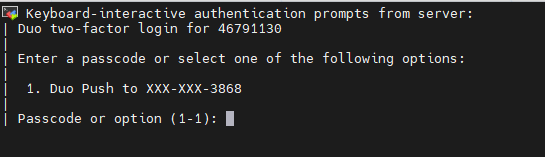
When logged in, you are presented with a welcome message and the following “prompt”:
[username@login01 ~]$
The prompt in a bash shell usually contains a ($) sign, and shows that the shell is waiting for input. The prompt may also contain other information:
this prompt tells you your username and which node you are connected to - login01 is the “login” node. (There are total 5 login nodes on M2)
It also tells you your current directory, i.e., ~, which, as you will learn shortly, is short for your home directory.
Key Points
M3 can be accessed by an SSh (secure shell) client
Terminal using cursor.com
Open OnDemand platform