Uploading GIS file to request download from NEAR using API
Overview
Teaching: 5 min min
Exercises: 0 minQuestions
How to upload GIS data to NEAR website using API?
Objectives
2. Uploading GIS data automatically to NEAR website for job creation
Introduction
- Sometime, we need to use API to upload GIS data to website to request files when there are so many files and options to download.
- You can download data from Twitter, YouTube, Google etc using API. However you will need to register with the provider and get the API key or Bearer Token.
- This is an actual project where we will be downloading data from near website vista.um.co, with given username/password and API token.
POSTMAN
- Postman is an API platform for building and using API
- In order to use Postman, you need to register an account and login with that:

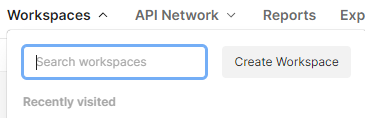
- If you are new to Postman, you will need to create Workspace to save your API query:
- Once you have My Workspace, click on the + to open up the new workspace:
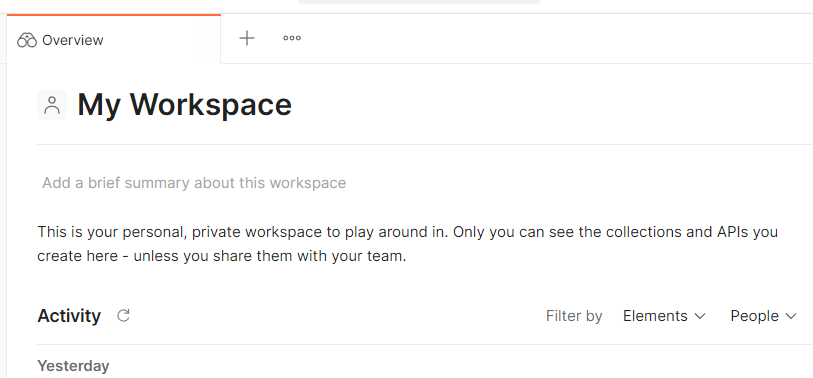
- The following workspace opened:
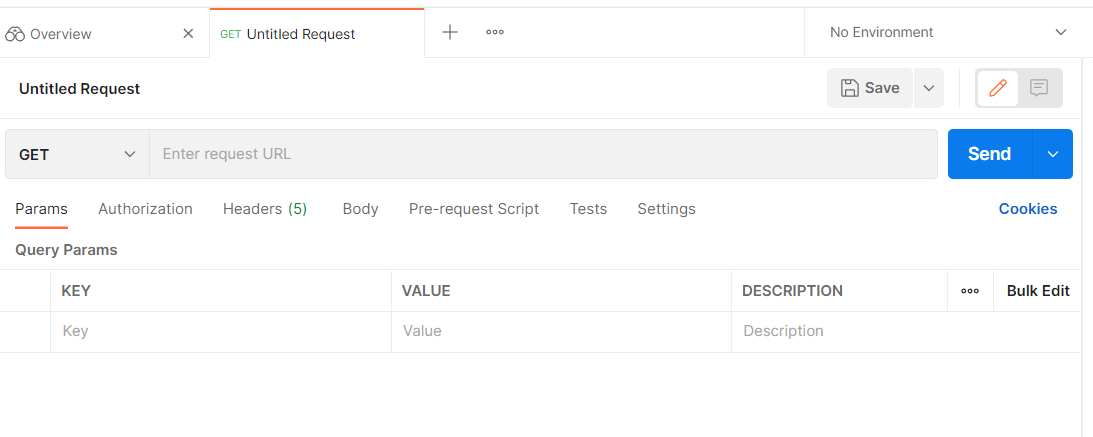
-
Here I will be downloading near data using shapefile (in zip format, created in other post)
- The approach that I am using is POST instead of GET.
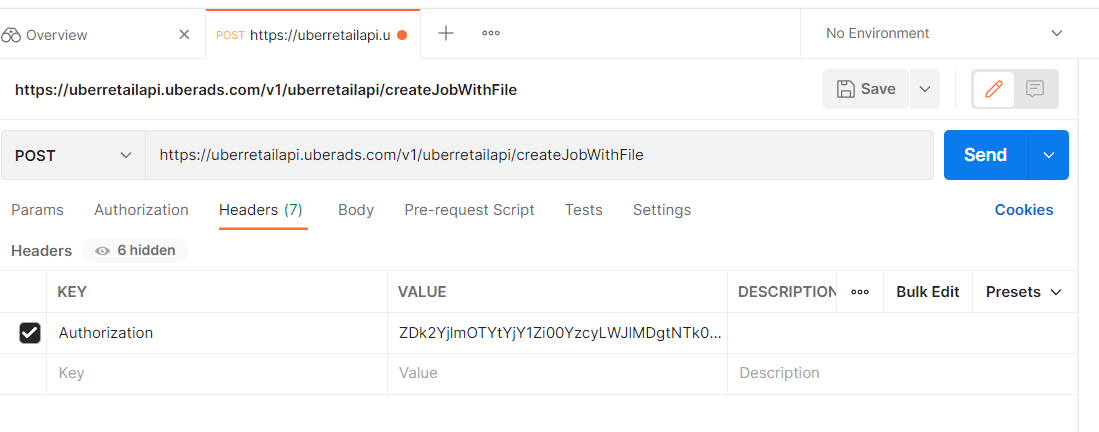
- I also need to paste in the endpoint for the POST location and Authorization key in the Headers tab: The endpoint is downloaded from NEAR DATA API given from their company in PDF, in the section of Create Job with Shapefile:
https://uberretailapi.uberads.com/v1/uberretailapi/createJobWithFile
- In Authorization tab, change Type to Bearer Token and insert Token value given by NEAR to Token box
-
The most important task is the Body section, in the form data, there are 2 files that you need to insert:
- polygonFile with file type is File. The browse button will appear for you to upload the ziped shapefile
- jsonRequest with file type Text. Detail of json file is below:
{"pipReportType":"PIN_REPORT",
"reportName":"F17_2021Q1",
"polygonInputOptions": { "polygonFormat": "ESRI_SHAPEFILE_ZIP",
"polygonNameAliasElement": "PageName" },
"startDateTime": "2021-01-01 00:00:00",
"endDateTime": "2021-03-31 23:59:59"
}
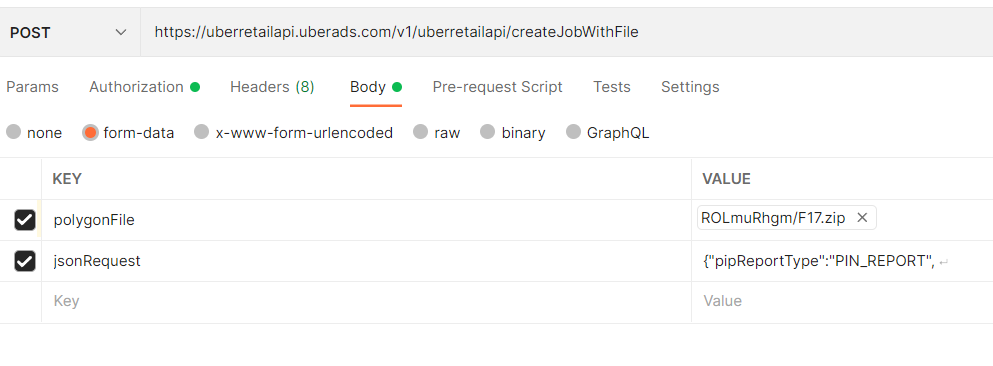
Note that: the reportName can be changed to match with the input shapefile. The polygonNameAliasElement=”PageName” is fixed with the shapefile variable names The start and end DateTime can be altered
- Once everything is specified, hit Send then the job is submitted
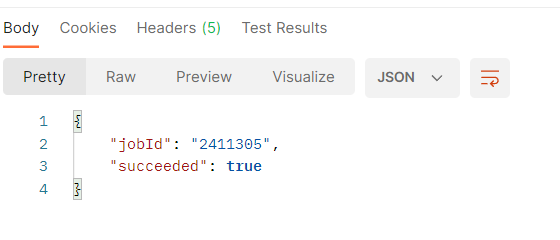
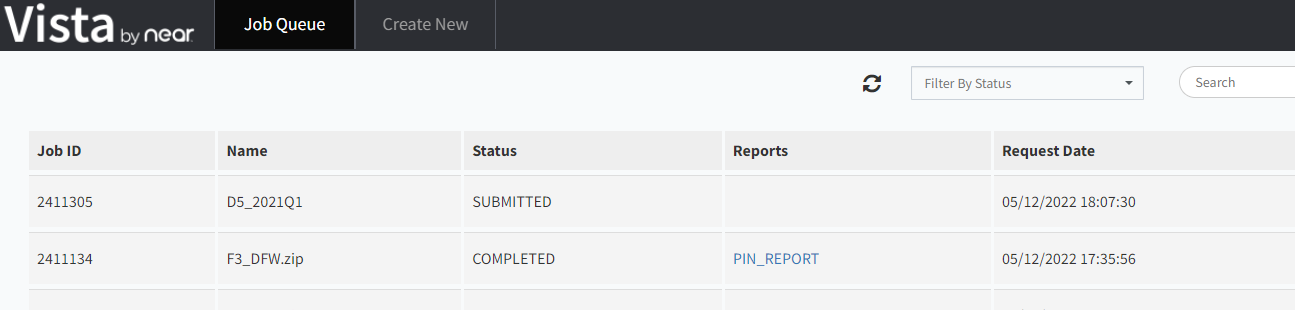
- Go back to Vista page and you will see the job submitted:
Python
- Postman is free and simple to use to download data. However, it still requires manual import the shapefile and name changed for every download.
- Python script is generated to support mass downloading.
- To get the python script from Postman click on the link to open code snippet:
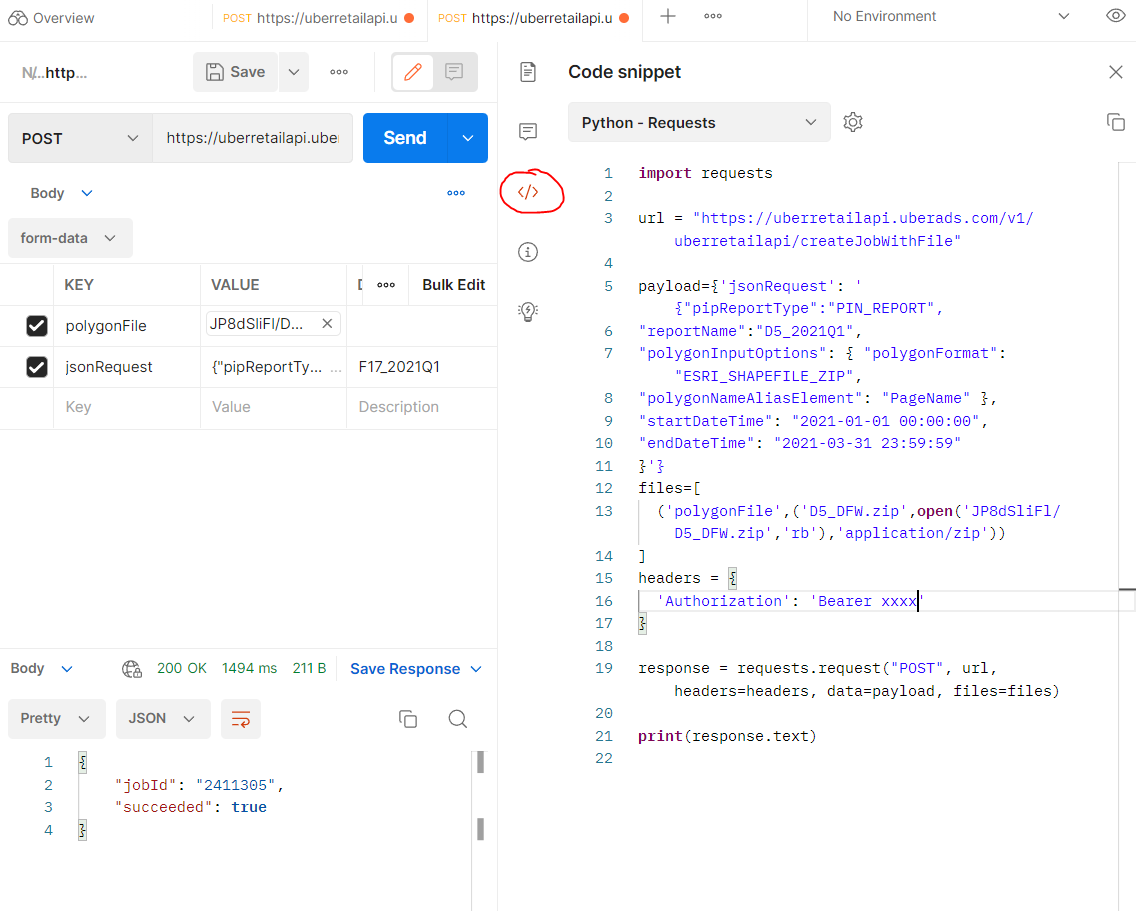
- In order to do the automation, we need to modify the input information, such as report name, zip file name, zip file location
- Here we do everything in ManeFrame M2 supercomputer, the GIS shapefiles are uploaded to home directory.
- Following is the python code to upload shapefile in requested zip format to NEAR website and create the jobs ready for download:
import requests
import os
import json

url = "https://uberretailapi.uberads.com/v1/uberretailapi/createJobWithFile"
headers = {'Authorization': 'Bearer ********'}
j=0
n=1
dir1 = '/work/group/makris_lab/GIS/shapefile_zip/DFW/'
listfile = os.listdir(dir1)
while j<=len(listfile)-1:
    dict1 = dict({"pipReportType":"PIN_REPORT",
                  "reportName":f"{listfile[j]}",
                  "polygonInputOptions": { "polygonFormat": "ESRI_SHAPEFILE_ZIP","polygonNameAliasElement": "PageName" },
                  "startDateTime": "2021-03-01 00:00:00",
                  "endDateTime": "2021-03-31 23:59:59"})

    payload = {'jsonRequest':str(dict1).replace("'",'"')}
    files=[('polygonFile',(f"{listfile[j]}",open(f'{dir1}{listfile[j]}','rb'),'application/zip'))]
    response = requests.request("POST", url, headers=headers, data=payload, files=files)
    if "True" in str(json.loads(response.text).values()):
        print("Succeeded. Submitting job to download ",listfile[j])
        j+=1
        n=1
    else:
        print("Failure. Resubmitting job ", listfile[j], " ", n,  " times")
        n+=1
- Note that due to the near server, sometime not being able to import GIS file, so we need to resubmit if it failed. It is represented as the for while loop.
Key Points
Postman, Python, API, upload