Tunneling Jupyter Lab in SuperPOD
Overview
Teaching: 20 min
Exercises: 0 minQuestions
How to use Jupter Lab in SuperPOD?
Objectives
Learn port forwarding technique to enable Jupter Lab
4. Jupter Lab on SuperPOD
-
There is no display config and Open OnDemand setup in SuperPOD, so it is not quite straighforward to use Jupter Lab
-
However, it is still possible to use Port-Forwarding in SuperPOD in order to run Jupyter Lab.
The following procedure are for Window and MacOS, Linux
Using Visual Studio Code terminal for any systems:
When not logged into M2, ssh with “-D” for Dynamic Forwarding with port 8080, “-C” for compression, to M2 login node:
$ ssh -C -D 8080 username@m2.smu.edu
Once in login node, request a compute node, load the library and activate conda env as usual, then run Jupyter lab instance:
$ srun -p v100x8 -N1 -c1 --mem=16gb --pty $SHELL
$ module load python/3
$ conda activate myenv
$ jupyter lab --ip=0.0.0.0 --no-browser
Using Window OS’s MobaXTerm
For Window, I use MobaXTerm (https://mobaxterm.mobatek.net/) and Firefox to configure port-forwarding
Setup in MobaXTerm
Open MobaXTerm and Select Tunneling tab:
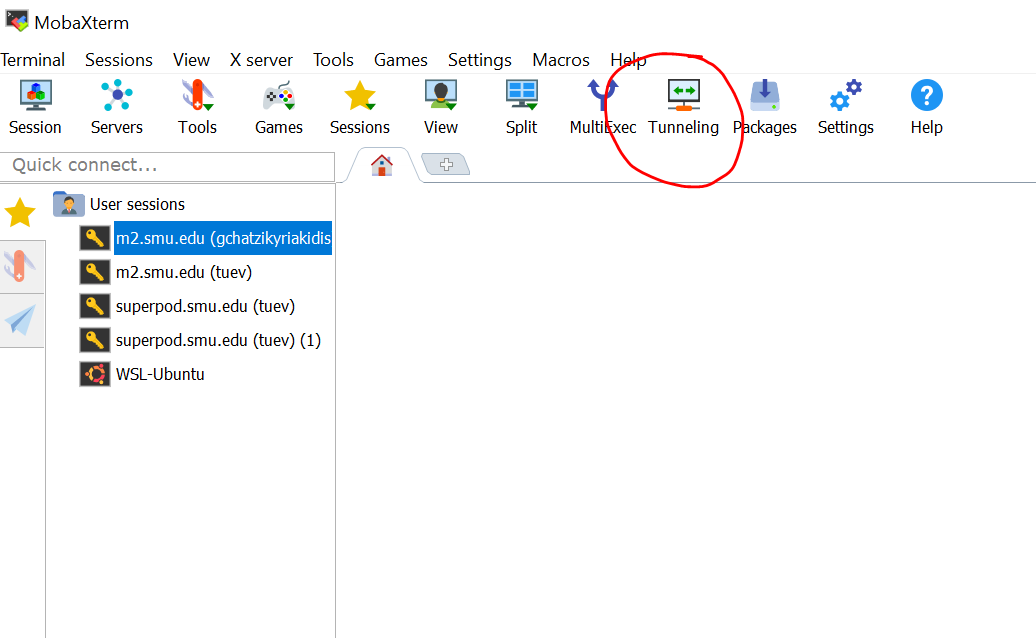
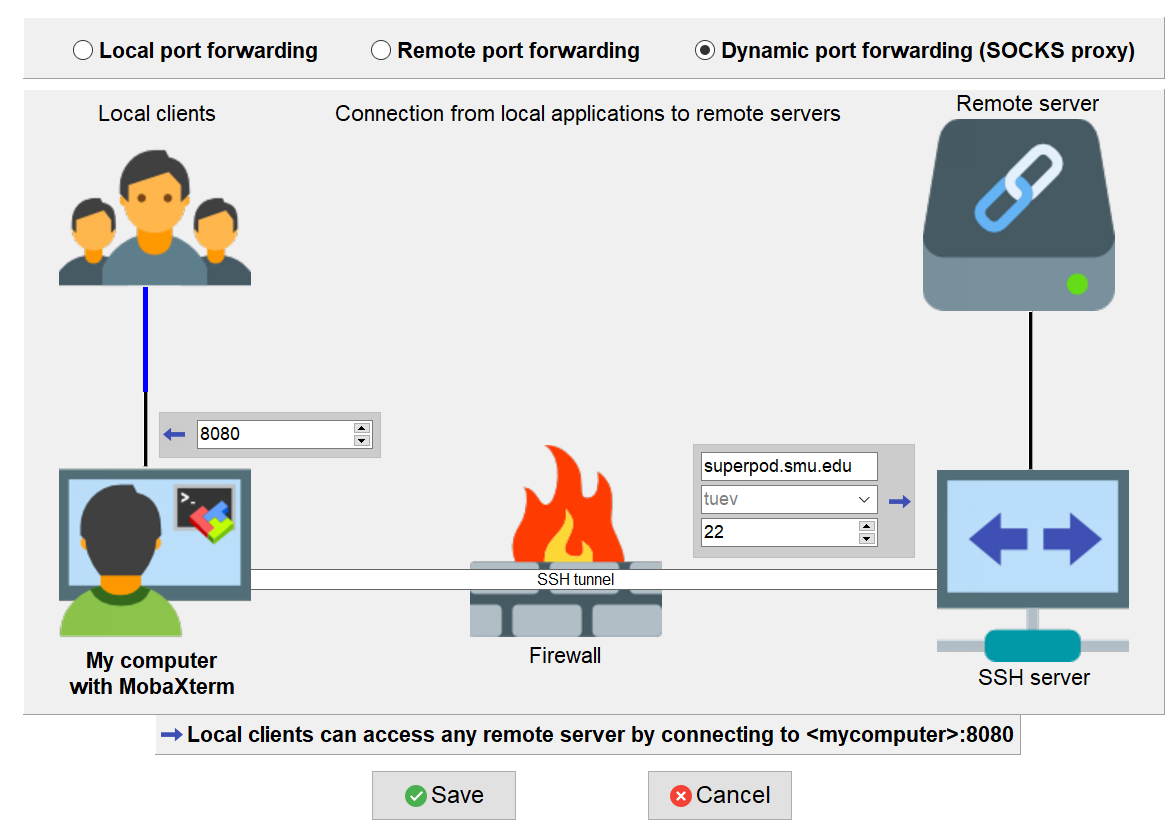
- Select New SSH tunnel, then select Dynamic port forwarding (SOCKS proxy)
- Filling the information as follows:
**
**: 8080 ** **: superpod.smu.edu ** **: $USERNAME ** **: 22 - Click Save
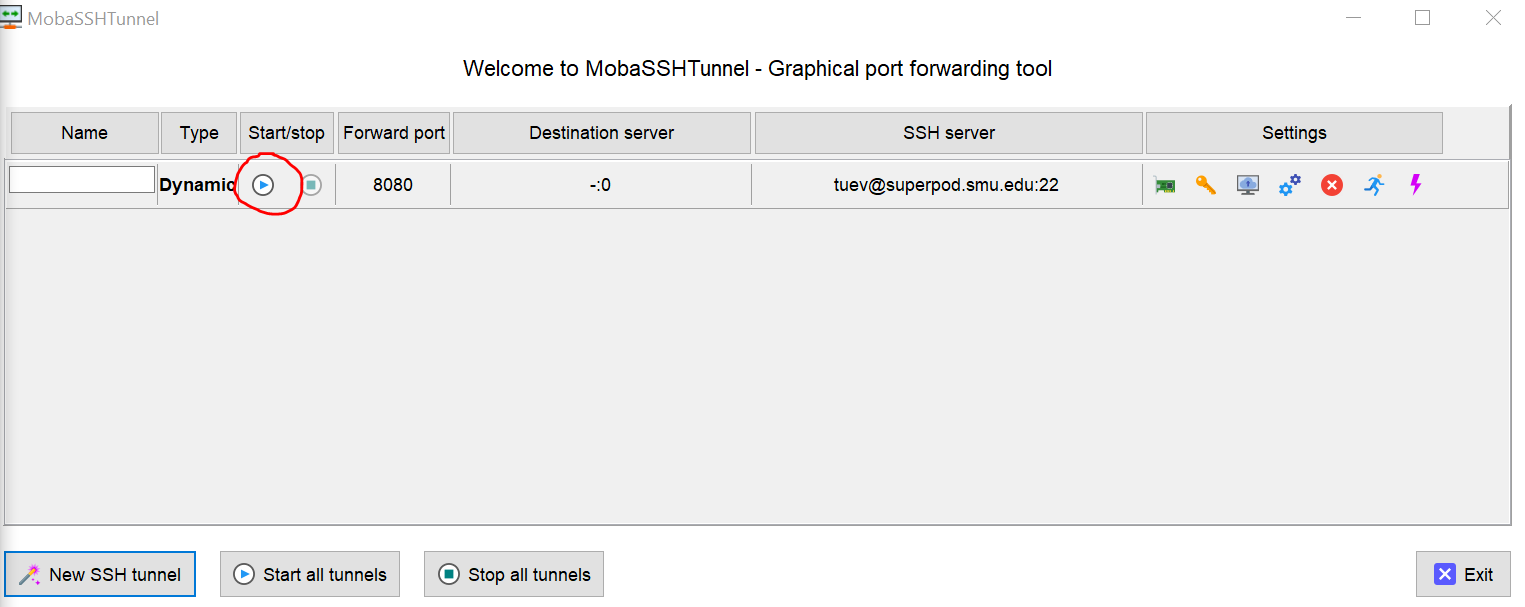
The Graphical port forwarding tool appears, Click on play button
The Duo screen appears, enter 1 to authenticate the Duo Once you pass the Duo screen, the port forwarding tool enabled:
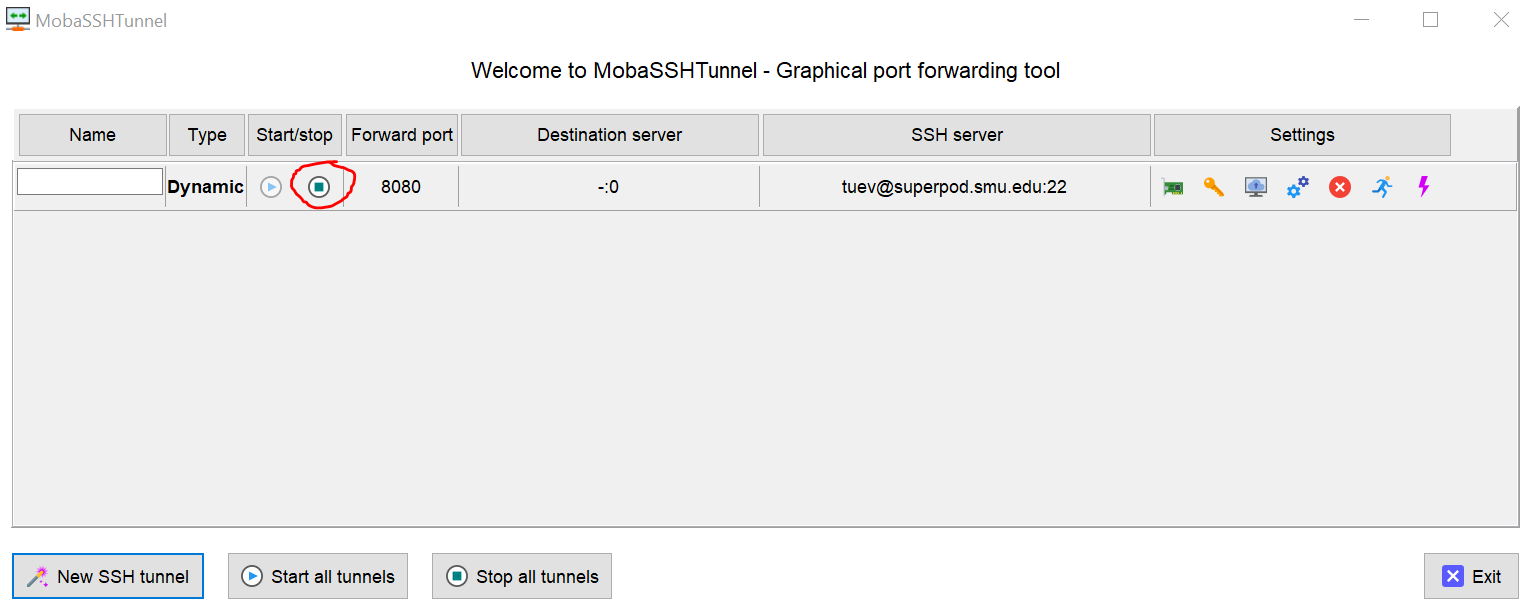
Leave the port-forwarding screen opened and we switch to Firefox
Setup Firefox to enable proxy viewing (similar for MacOS as well)
Open Firefox, my version is 104.0.2. Use combination Alt+T+S to open up the settings tab. Scroll to bottom and select Settings from Network Settings:

- Select Manual Proxy Configuration
- In the SOCKS Host, enter localhost, Port 8080
- Check SOCKS v5.
- Check Proxy DNS when using SOCKS v5.
- Check Enable DNS over HTTPS.
- Make sure everything else is unchecked, then click OK.
- Your screenshot should look like below:

Test Proxy
Go back to MobaXTerm and login into SuperPOD using regular SSH Request a compute node with container
$ srun -N1 -G1 -c10 --mem=64G --time=12:00:00 --pty $SHELL
Load cuda, cudnn and activate any of your conda environment, for example Tensorflow_2.9
$ module load spack conda
$ module load cuda-11.4.4-gcc-10.3.0-ctldo35 cudnn-8.2.4.15-11.4-gcc-10.3.0-eluwegp
$ source activate ~/tensorflow_2.9
Make sure to install jupyter
$ pip install jupyter
Next insert the following command:
$ jupyter notebook --ip=0.0.0.0 --no-browser
# or
$ jupyter lab --ip=0.0.0.0 --no-browser
The following screen appears

Copy the highlighted URLs to Firefox, you will see Jupyter Notebook port forward to this:

Select TensorflowGPU29 kernel notebook and Check GPU device:

Key Points
Jupter Lab, Port-Forwarding